How to Create Different Product Categories and Add Products to Your Catalog
The main purpose of this section is to show you how to successfully add products to your catalog. Each product can be assigned to a specific category, making it easier to organize, manage, and navigate your store. From this section, you will be able to create and manage all the products available in your store.
1. How to Create Different Product Categories
On this page, you can create different product categories. Each product can then be assigned to its appropriate category, allowing for better organization and management of your catalog.
Step 1: Access the Product Categories Section
The image below shows an overview of the Product Categories section.
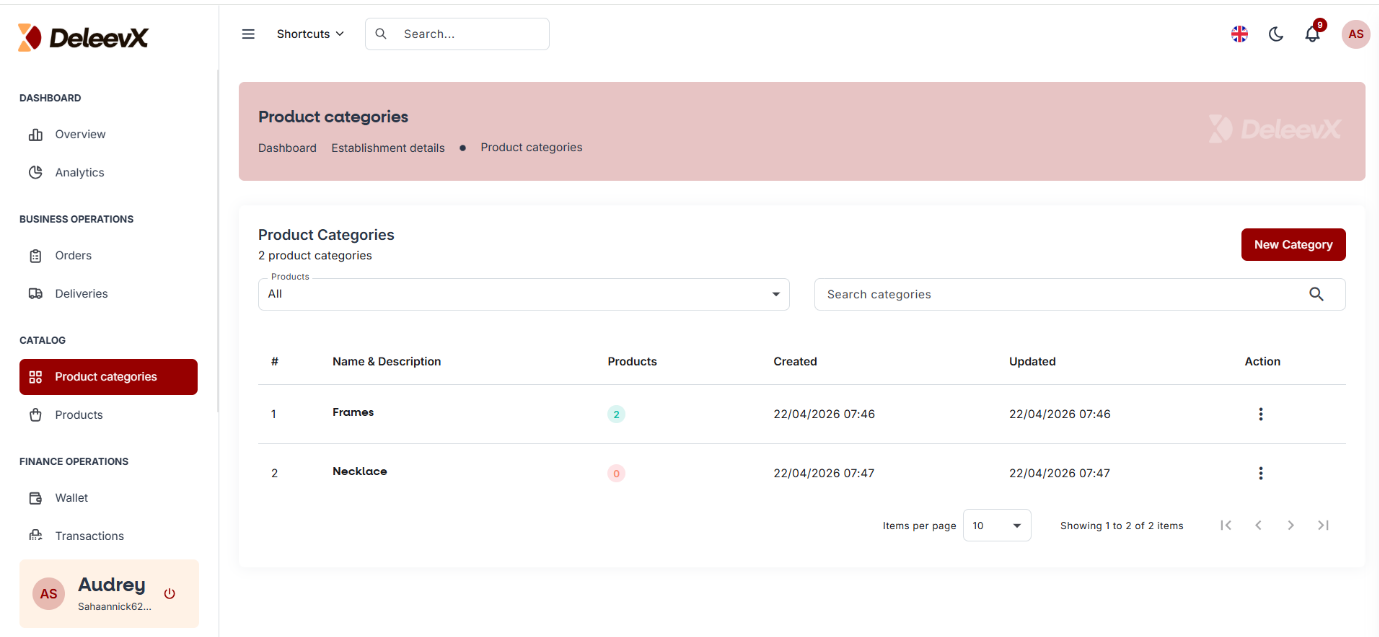
Click on the "New Category" button to create a new product category.
Step 2: Create a New Category
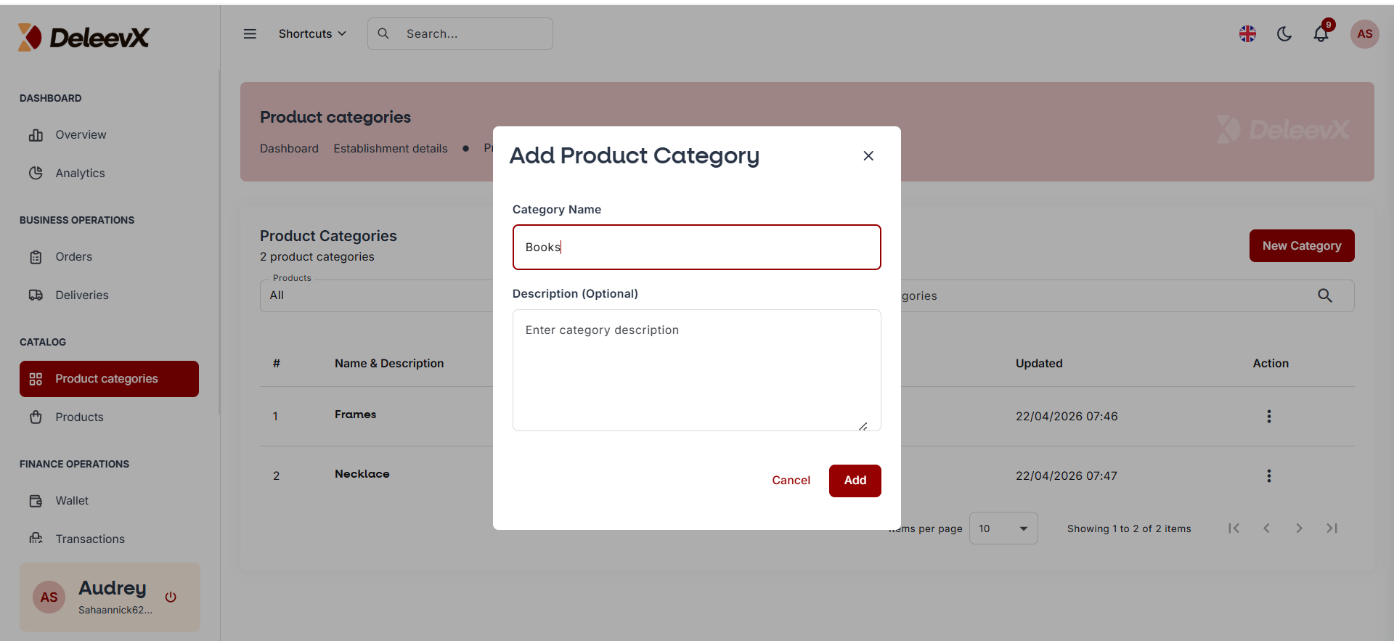
After clicking the "New Category" button, a new page will open.
Enter all the required information about your product category. Once you have completed the form, click the "Add" button to create the category.
Step 3: Category Successfully Created
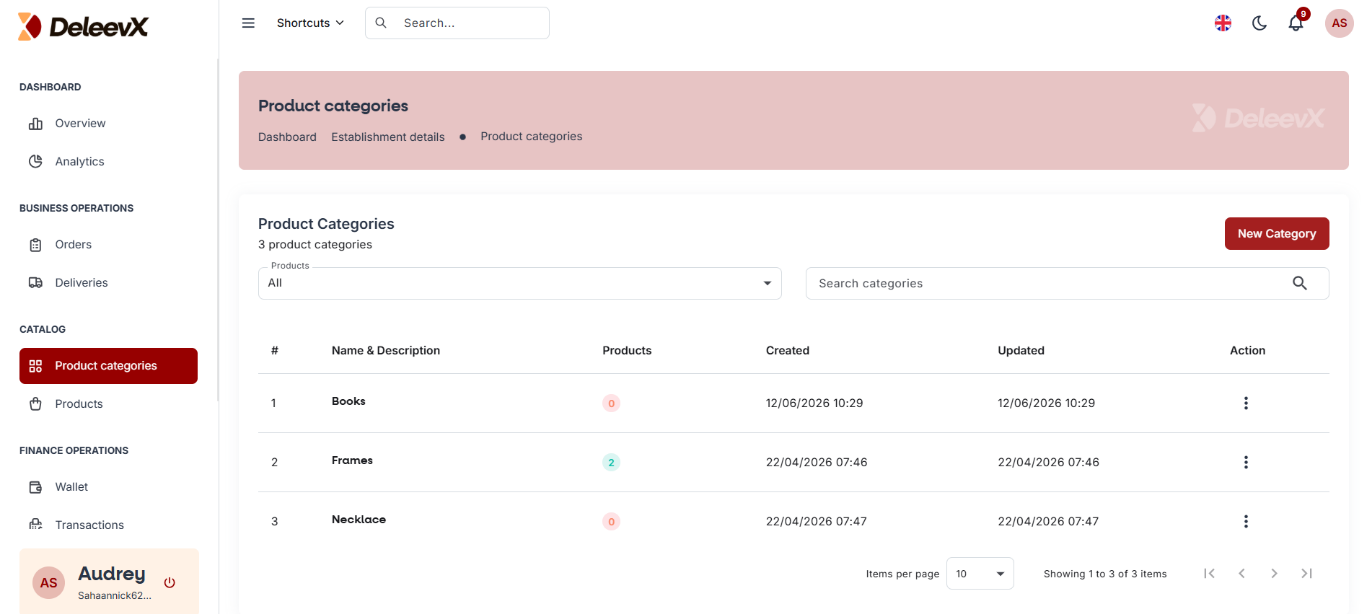
Once the category has been created, it will appear in the list of available categories, as shown below.
2. How to Add Products to Your Catalog
Step 1: Access the Products Section
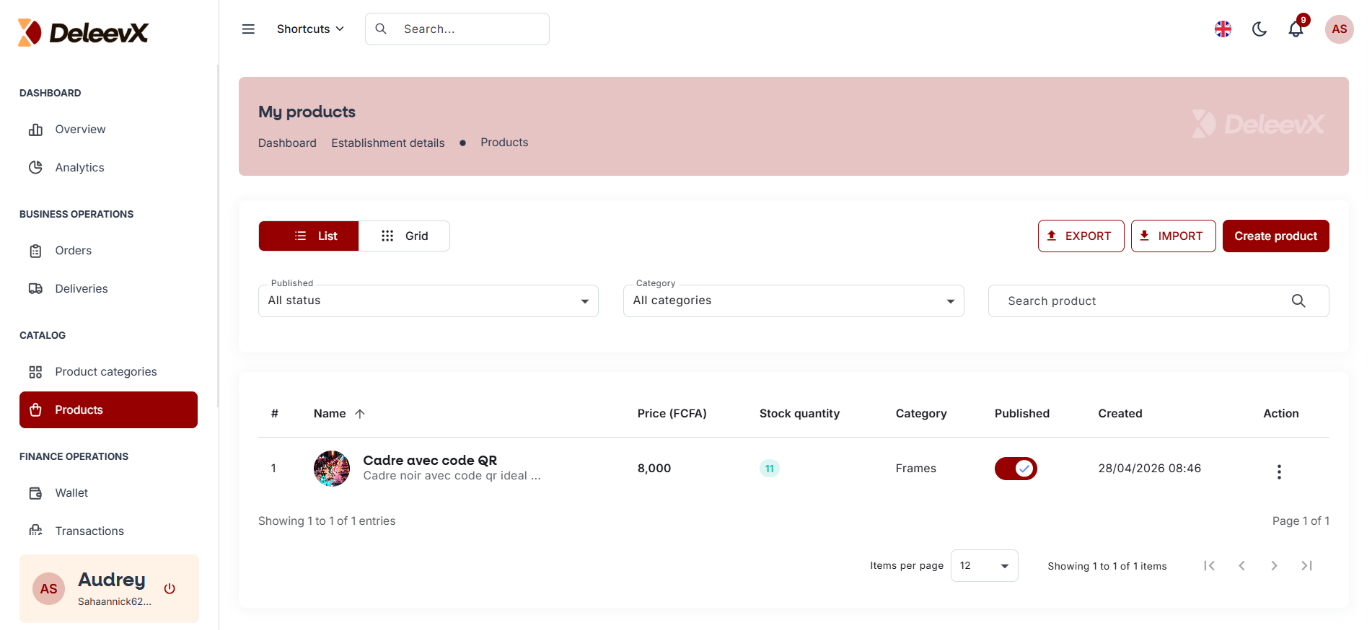
The image below shows an overview of the Products section.
Click on the "Create Product" button to add a new product to your catalog.
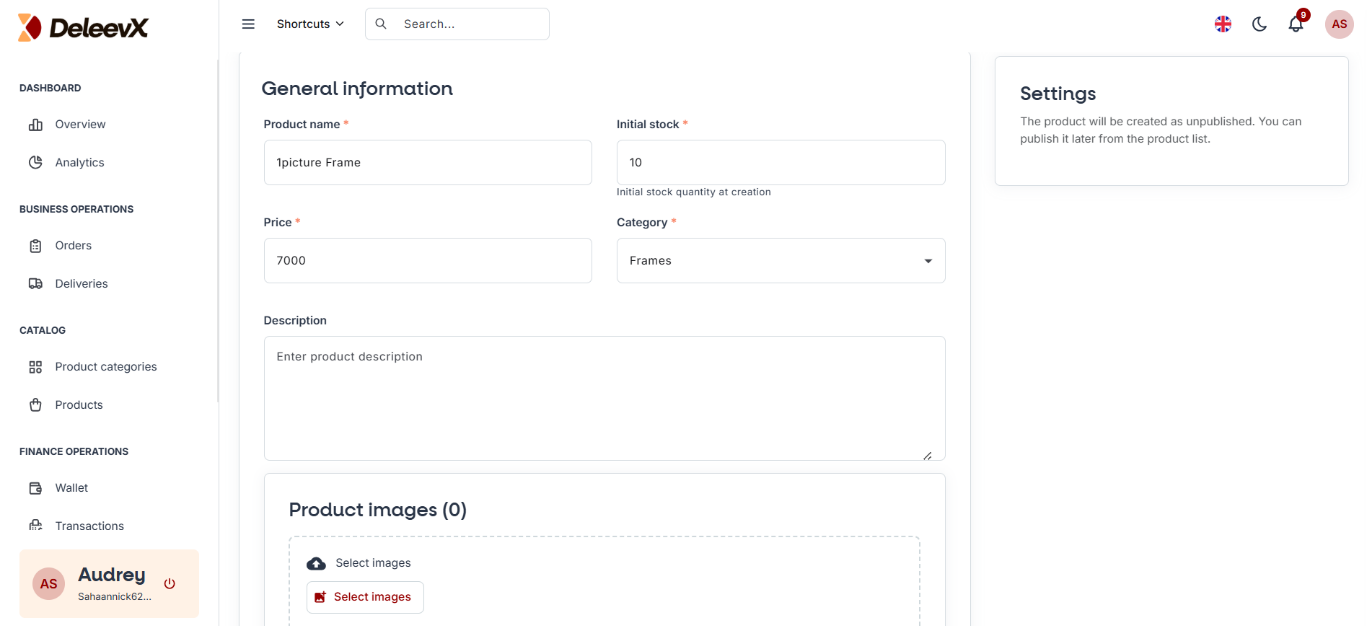
Step 2: Create a Product
After clicking the "Create Product" button, a new page will appear.
This page allows you to enter all the information required to create a product, including:
- Product Name
- Product Price
- Category
- Product Image
- Product Description
- Any other required information
Once all the information has been entered, click the "Create Product" button.
Note: The category selected here must be one that was previously created. Choose the category to which you would like the product to be assigned.
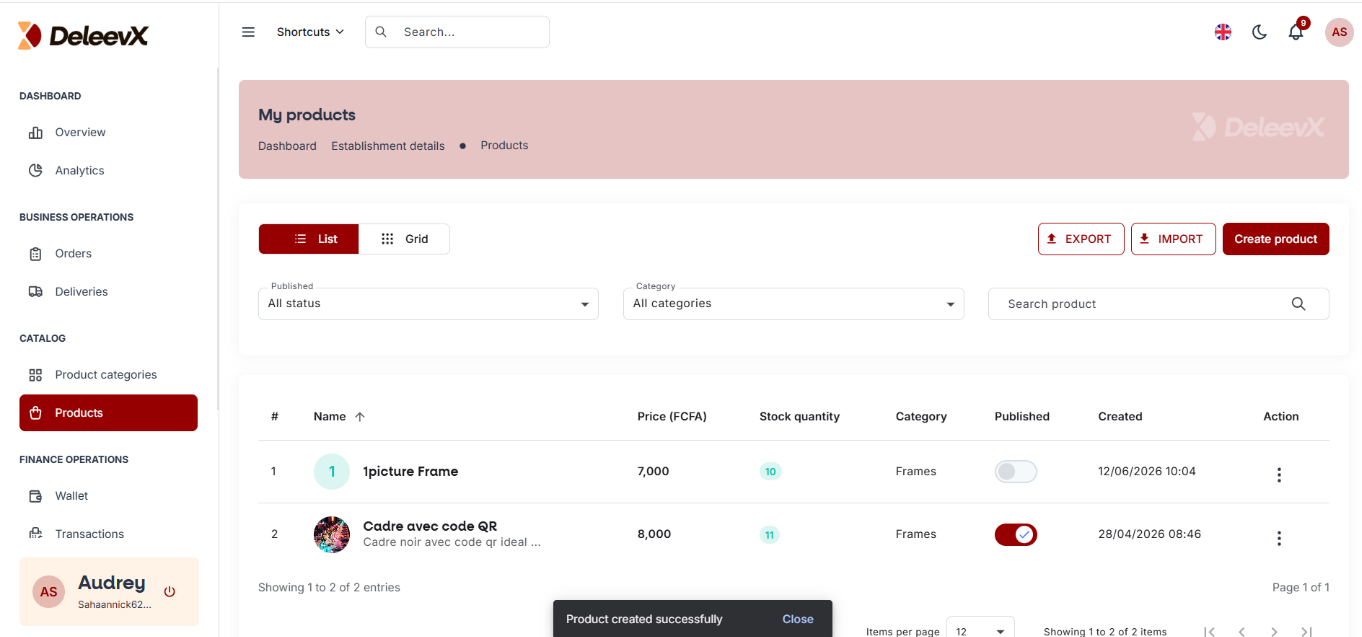
Step 3: Product Successfully Added
After creating the product, it will be added to your catalog and displayed in your products list, as shown below.
Importing and Exporting Products
You can also:
- Import multiple products from a file.
- Export your products list for backup, reporting, or data analysis purposes.
Congratulations!
You now know how to:
- Create product categories.
- Add products to your catalog.
- Organize your store efficiently.
- Import and export products.
You are now ready to manage your product catalog professionally on DeleevX.